
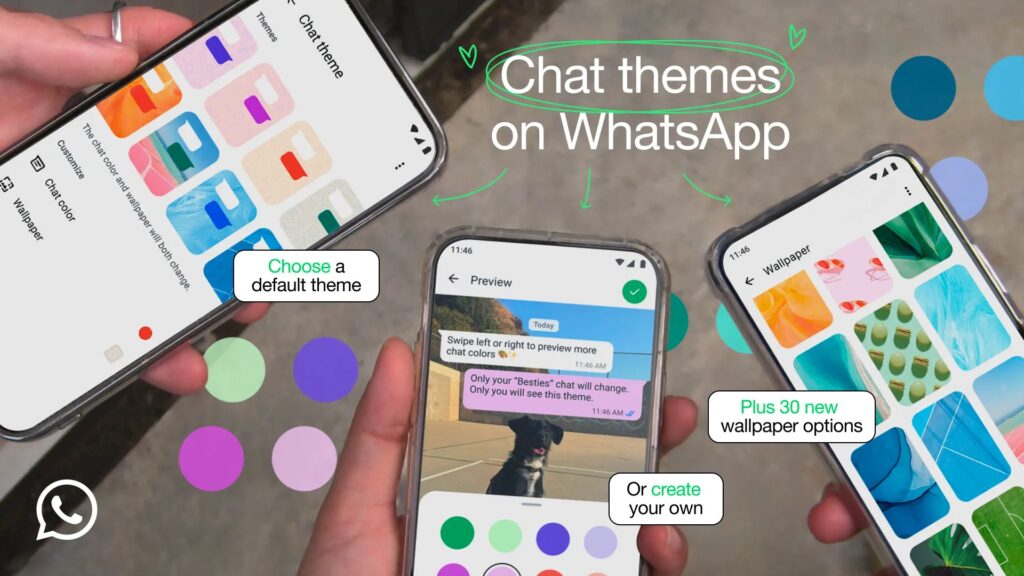
You asked for it. Here it is! We’re introducing chat themes, so you can make your chats uniquely yours with colorful chat bubbles and new wallpapers.
Chat themes: Turn your chat bubbles and background your favorite colors, with plenty of options to choose from. Pick from one of our pre-set chat themes which change both your background and bubbles, or mix and match colors to best fit your style.
New wallpapers: Add some fun to your chats by choosing from 30 new wallpaper options, or you can still upload a background from your camera roll to make them completely unique to you.
You can apply the same theme to all your chats, or make each one extra special with different themes. Either way, your chat themes are only visible to you. You can also change the theme of your channels.
To change the theme of all your chats and channels, go to Settings > Chats > Default chat theme. To customize each chat individually, click the chat name at the top of the chat screen (on iOS), or click the 3-dot menu (on Android) > Chat theme.
These features are now starting to roll out, and will be available globally over the coming weeks.
Here are the details of the new customization experience:
- Custom Chat Themes: You can now pick from over 20 different chat themes/colors to personalize your conversations.
- Color Choices: While the iconic green remains an option, you can now change chat bubbles to colors like blue, pink, purple, and more.
- Wallpaper Integration: The new themes not only change the bubble color but also update the default wallpaper to match the theme.
- How to Change: You can set a default theme for all chats via Settings > Chats > Default Chat Theme.
- Individual Customization: You can also change the theme for specific, individual chats, which is perfect for distinguishing between work and personal chats.
- Visibility: These custom themes are currently only visible to you (the user who sets them) and do not change the chat for the recipient.
WhatsApp allows you to customize your chat theme, color, and wallpaper. For example, you can change your WhatsApp chat theme to a color like pink, blue, purple or red. Pick from one of our pre-set chat themes which change both your chat color and wallpaper, or mix and match between 20 different colors to best fit your style.
Currently, you can only change the color theme of your chats and background to light or dark mode on WhatsApp Web. You can change to other colors on your iPhone or Android device. WhatsApp allows you to customize your chat theme, color, and wallpaper. For example, you can change your WhatsApp chat theme to a color like pink, blue, purple or red. Pick from one of our pre-set chat themes which change both your chat color and wallpaper, or mix and match between 20 different colors to best fit your style.
Customize your wallpaper and chat color for all chats
Use a theme for all chats
A theme sets both the chat wallpaper and the chat color. Dark mode is a feature that changes the color scheme of WhatsApp from light to dark.
For further customization options such as wallpaper and chat colors, read.
Turn on dark mode
Click Ok.
Click 
Click Dark.
Click Light to turn off dark mode.
Click System default to use the same theme as your device.
- Tap
> Settings > Chats.
- Tap Default chat theme.
- Select the chat theme you want to use.
- Tap
to confirm.
- Tap Set theme.
Change wallpaper for all chats
- Tap
- Tap Default chat theme.
- Tap Wallpaper.
- Select a wallpaper.
- Tap
- Tap Set wallpaper.
Change chat color for all chats
- Tap
- Tap Default chat theme.
- Tap Chat color.
- Select a chat color.
- Tap
- Tap Set chat color.
Customize your wallpaper and chat color for a specific chat
Use a theme for a specific chat
A theme sets both the chat wallpaper and the chat color.
- Open the chat you’d like to use a theme in.
- Tap
- Select a theme.
- Tap
- Tap Set theme.
Change wallpaper for a specific chat
- Open the chat you’d like to add a wallpaper to.
- Tap
- Tap Wallpaper.
- Select a wallpaper.
- Tap
Change chat color for a specific chat
- Open the chat.
- Tap
- Tap Chat color.
- Select a chat color.
- Tap
Create and use AI-generated chat themes and wallpapers
You can create an AI-generated image and use it as a chat theme or wallpaper. AI images are generated by artificial intelligence (AI), based on the prompts and messages you type, using a service from Meta.
Note:
- Meta AI and some experiences are currently only available in limited countries and might not be available to you yet, even if others in your country have access.
- At this time, only English, Arabic, French, German, Hindi, Indonesian, Italian, Portuguese, Spanish, Tagalog, Thai, and Vietnamese are supported.
You can create and use AI-generated images as chat themes or wallpapers to customize your WhatsApp chat experience. AI images are generated by artificial intelligence (AI), based on the prompts and messages you type, using a service from Meta.
Note:
- Meta AI and some experiences are currently only available in limited countries and might not be available to you yet, even if others in your country have access.
- At this time, only English, Arabic, French, German, Hindi, Indonesian, Italian, Portuguese, Spanish, Tagalog, Thai, and Vietnamese are supported.
Customize your wallpaper and chat themes for all chats
Use a theme for all chats
A theme sets both the chat wallpaper and the chat color.
- Tap
- Tap Default chat theme.
- Tap Create with AI.
- Describe the image you’d like to create in the text field, then tap
.
- Alternatively, select a suggested image to explore ideas.
- Tap
to see a new set of images or Make changes to edit the image.
- Tap
>
Change wallpaper for all chats
- Tap
- Tap Default chat theme.
- Tap Wallpaper.
- Tap Create with AI.
- Describe the image you’d like to create in the text field, then tap
- Alternatively, select a suggested image to explore ideas.
- Tap
- Tap
Customize your wallpaper and chat theme for a specific chat
Use a theme for a specific chat
- Open the chat you’d like to use a theme in.
- Tap
- Tap Create with AI.
- Describe the image you’d like to create in the text field, then tap
- Alternatively, select a suggested image to explore ideas.
- Tap
- Tap
Change wallpaper for a specific chat
- Open the chat you’d like to add a wallpaper to.
- Tap
- Tap Wallpaper.
- Tap Create with AI.
- Describe the image you’d like to create in the text field, then tap
- Alternatively, select a suggested image to explore ideas.
- Tap
- Tap
Note:
- As always, your personal messages and calls are protected with end-to-end encryption, meaning no one outside of the chat, not even WhatsApp or Meta, can read, listen to, or share them.
- Some images generated by AIs might not be accurate or appropriate.
In summary: WhatsApp is moving towards a more personalized experience, allowing you to move away from “only green” if you choose to. The feature is currently rolling out globally on both Android and iOS.
WhatsApp Color Change Feature: Are you bored of seeing the same old green interface of the messaging app WhatsApp for years? If the answer is yes, then Meta is about to completely change your chatting experience. Meta is significantly updating WhatsApp’s interface, moving beyond the traditional, long-standing green theme to offer users more personalization options. As of early 2026, WhatsApp is introducing chat themes that allow users to change both the background and the color of their chat bubbles. Announcing the new “Chat theme” feature, the company said that users can now customise their WhatsApp chats to reflect their style. The feature is now starting to roll out, and will be available globally over the coming weeks.
WhatsApp chat themes: What is new
The new feature allows users to not only change the chat background but also customise the colour of chat bubbles to suit their preferences. Multiple pre-set chat themes are available, adjusting both the background and chat bubbles. Users can also mix and match these themes to create a unique look. Additionally, they can apply the same theme to all chats or customise each individual conversation. These customisations can also be used in WhatsApp channels. WhatsApp has introduced 30 new chat wallpaper options, but users can still upload their own images from the gallery. It’s important to note that these themes and backgrounds are only visible to the user who applies them and do not affect the other person in the conversation.
WhatsApp chat themes: How to apply
For changing the theme of all your chats and channels, go to the Settings menu > Chats > Default chat theme, and select a theme of your preference. For customising each chat individually, tap on the name of the contact at the top of the chat screen (on iOS), or click the three-dot menu (on Android), and select the “Chat theme” option. It should be noted that the feature might not be available to all users at this time as the company is rolling out these new customisation features gradually. It is expected to be available more widely in the coming weeks.
Here is what you need to know about the upcoming color changes:
Key Features of the Update
- Custom Chat Themes: You can now select from various pre-set themes, which include different colors for chat bubbles and corresponding wallpapers.
- Color Palette Expansion: Reports indicate that WhatsApp is introducing up to 20 different color options for chat bubbles.
- Individual & Default Settings: You can set a default theme for all chats or customize the theme for specific individual conversations.
- Improved Visuals: These themes will affect the overall app color, including navigation tabs and buttons, offering a more modern aesthetic.
- Android & iOS Updates: These features are rolling out to both Android and iOS users.

Meta-owned messaging platform is experimenting with new personalisation tools in its Android beta version, potentially allowing users to change themes, accent colours and app icons, signalling a shift from its long-standing green-centric design identity. A UC Berkeley graduate, Suchir was a gifted and empathetic individual whose death is a significant loss to the tech community. His revelations have ignited global discussions on AI ethics, copyright, and the societal impact of generative technologies.
Balaji, who celebrated his 26th birthday on November 21 in Los Angeles, had contacted his parents about his flight home and spoke to his father that day. Described by his mother as a prodigy, he had grown deeply concerned about AI’s societal impact. Questions now arise about whether the FBI can uncover the truth, as it appears his every move was being monitored. A report states, Suchir had documents and information that would have turned the AI industry “Upside down”, her mother Poornima Ramarao said. She alleged foul play, stating, “This is not a suicide; it’s a murder.” Recounting their last conversation, Suchir’s father, Balaji Ramamurthi, noted his son’s upbeat demeanor after returning from Los Angeles just days before his death. Suchir Balaji’s death comes at a time when OpenAI and its partner Microsoft face multiple lawsuits alleging copyright infringement AI is transforming industries by enhancing operational efficiency, reducing costs, and enabling innovative products and services. From healthcare to cybersecurity, AI is driving a new era of technological advancement, reshaping industries and the global economy.
AI is impacting HFTAC industries (Health care, Finance, Transportation, Agriculture and Cyber security):
Healthcare:
AI-powered tools like machine learning algorithms and image recognition are improving disease diagnosis accurately, from detecting cancers in radiology scans to predicting patient outcomes. AI helps tailor treatments based on individual genetic information. The other sectors including Drug Discovery and Telemedicine & Virtual Health Assistants. In Finance –
AI algorithms can analyze transaction data in real-time, identifying patterns indicative of fraudulent activities, enhancing security. AI models predict market trends and execute trades at optimal times, improving investment returns for hedge funds and traders. AI chatbots and automated financial advisors provide personalized customer support, managing tasks like account inquiries or wealth management efficiently.
In Transportation & Logistics industry – AI plays a critical role in the development of self-driving cars and trucks, with companies like Tesla and Waymo leading the charge. AI analyzes traffic patterns, weather, and other factors to optimize delivery routes, improving fuel efficiency and delivery times. AI-powered tools monitor vehicle conditions, manage fuel consumption, and predict maintenance needs to improve overall operational efficiency.
In Agriculture – AI helps farmers optimize crop yields by analyzing soil conditions, weather forecasts, and plant health in real-time, enabling targeted interventions like irrigation and fertilization. AI-powered drones and robots assist in planting, watering, and harvesting crops, reducing labour costs and improving efficiency. AI optimizes the food supply chain by predicting demand and reducing spoilage through more accurate logistics planning.
The Fifth and important industry is Cybersecurity, AI systems detect and respond to cyber threats in real-time, identifying potential vulnerabilities and preventing attacks. AI automates the response to security incidents, improving reaction times and reducing the impact of breaches. AI tools evaluate security risks across systems, helping businesses protect sensitive data and maintain compliance with regulations.
Organizations that embrace AI stand to benefit greatly, positioning themselves as leaders in their respective fields. The FTC is responsible for consumer protection in the States. On the other hand, the state attorneys general under the leadership of New York’s Letitia James have been scrutinizing Facebook for potential threats to competition.
The time frame could vary, adding that the state attorneys general are in the late stages of preparing their complaint. Neither Facebook, or the FTC, or the office of the New York Attorney General have addressed the move yet. A 19-year-old Mark Zuckerberg started Facebook in 2004 for students to match names with photos of classmates.
Zuckerberg took Facebook public in 2012; he now owns about 13% of the company’s stock.
Facebook changed its name to Meta in 2021 to shift the company’s focus to the metaverse.
In 2015, Zuckerberg and his wife, Priscilla Chan, pledged to give away 99% of their Meta stake over their lifetimes.

Facebook faced similar probes by the Justice Department and by state attorneys general, and has said previously that the investigations were looking at prior acquisitions and business practices involving “social networking or social media services, digital advertising, and/or mobile or online applications.”
Prior to this, in July 2019, Facebook also agreed to pay a record-breaking $5 billion fine to resolve a separate FTC probe into the company’s privacy practices. Big Tech is being trotted out in front of Congress again. Congress could smell this idea and information of the technology giants, the House Committee on Energy and Commerce will hold a hearing on March 25, will focus on misinformation and disinformation. Mark Zuckerberg, Jack Dorsey, and Sundar Pichai will testify before Congress at a hearing on digital misinformation being trotted out in front of Congress again. Facebook, Google, and Twitter have come under particularly intense scrutiny over misinformation since the January 6 storming of the Capitol building.
The House Committee on Energy and Commerce announced the hearing will feature appearances from Facebook CEO Mark Zuckerberg, Google CEO Sundar Pichai, and Twitter CEO Jack Dorsey.
The hearing, due to take place on March 25, will focus on misinformation and disinformation. The committee chairs said in a statement: “Whether it be falsehoods about the COVID-19 vaccine or debunked claims of election fraud, these online platforms have allowed misinformation to spread, intensifying national crises with real-life, grim consequences for public health and safety.”
User privacy and data use
The App Store is designed to be a safe and trusted place for users to discover apps created by talented developers around the world. Apps on the App Store are held to a high standard for privacy, security, and content because nothing is more important than maintaining users’ trust. In order to submit new apps and app updates, you need to provide information about some of your app’s data collection practices on your product page. You’re required to ask users for their permission to track them across apps and websites owned by other companies.
Describing how your app uses data
The App Store helps users better understand an app’s privacy practices before they download the app. On each app’s product page, users can learn about some of the data types an app may collect, and whether the information is used to track them or is linked to their identity or device.
In order to submit new apps and app updates, you must provide information about your privacy practices in App Store Connect. If you use third-party code — such as advertising or analytics SDKs — you need to describe what data the third-party code collects, how the data may be used, and whether the data is used to track users.
App privacy details on the App Store
The App Store helps people better understand an app’s privacy practices before they download the app on any Apple platform. On each app’s product page, users can learn about some of the data types the app may collect, and whether that data is linked to them or used to track them. You’ll need to provide information about your app’s privacy practices, including the practices of third-party partners whose code you integrate into your app, in App Store Connect. This information is required to submit new apps and app updates to the App Store.
What’s new
An important part of submitting your app to the App Store is explaining how your app handles user data. Two new updates make it easier to accurately provide Privacy Nutrition Labels and improve the integrity of the software supply chain: signatures for third-party SDKs and privacy manifests. In addition, we’re adding more data type options to use in your Privacy Nutrition Label when describing what types of data your app collects.
Answering app privacy questions
As you get ready to select your answers from the options presented in App Store Connect, keep in mind:
- You need to identify all of the data you or your third-party partners collect, unless the data meets all of the criteria for optional disclosure listed below.
- Your app’s privacy practices should follow the App Review Guidelines and all applicable laws.
- You’re responsible for keeping your responses accurate and up to date. If your practices change, update your responses in App Store Connect. You may update your answers at any time, and you do not need to submit an app update in order to change your answers.
Manage app privacy
You’re required to provide a privacy policy URL for your iOS app platform and privacy policy text for your tvOS app platform. Offering a privacy choices URL is optional. This informs users about the data that may be collected through your app and how it may be used.
Your responses to the app privacy questions are used to help inform customers about your app’s data practices. Based on the information you submit, your App Store product page will be updated to include details about the app’s data collection and usage.
Responses are provided at the app level and should accurately represent your app’s data practices across all platforms. You should answer in the most comprehensive and inclusive way if your app collects more data on one platform than another. You must include information about your app’s privacy practices and those of third-party partners whose code you integrate into your app.
Data collection
The purpose of the label is to help your customers understand what data is collected from your app and how it is used. To complete that, you’ll need to know the types of data that you and/or your third-party partners collect from your app before answering the questions in App Store Connect. Keep in mind that even if you collect the data for reasons other than analytics or advertising, it still needs to be declared. For example, if you collect data solely for the purpose of app functionality, declare the data on your label and indicate that it is only being used for that purpose.
“Collect” refers to transmitting data off the device in a way that allows you and/or your third-party partners to access it for a period longer than what is necessary to service the transmitted request in real time.
“Third-party partners” refers to analytics tools, advertising networks, third-party SDKs, or other external vendors whose code you’ve added to your app.
Optional disclosure
Data types that meet all of the following criteria are optional to disclose:
- The data is not used for tracking purposes, meaning the data is not linked with Third-Party Data for advertising or advertising measurement purposes, or shared with a data broker.
Tracking
You’ll need to understand whether you and/or your third-party partners use data from your app to track users and, if so, which data is used for this purpose.
“Tracking” refers to linking data collected from your app about a particular end-user or device, such as a user ID, device ID, or profile, with Third-Party Data for targeted advertising or advertising measurement purposes, or sharing data collected from your app about a particular end-user or device with a data broker.
“Third-Party Data” refers to any data about a particular end-user or device collected from apps, websites, or offline properties not owned by you.
Examples of tracking include:
- Displaying targeted advertisements in your app based on user data collected from apps and websites owned by other companies.
- Sharing device location data or email lists with a data broker.
- Sharing a list of emails, advertising IDs, or other IDs with a third-party advertising network that uses that information to retarget those users in other developers’ apps or to find similar users.
- Placing a third-party SDK in your app that combines user data from your app with user data from other developers’ apps to target advertising or measure advertising efficiency, even if you don’t use the SDK for these purposes. For example, using a login SDK that repurposes the data it collects from your app to enable targeted advertising in other developers’ apps.
The following situations are not considered tracking:
- When the data is linked solely on the end-user’s device and is not sent off the device in a way that can identify the end-user or device.
- When the data broker uses the data shared with them solely for fraud detection or prevention or security purposes.
- When the data broker is a consumer reporting agency and the data is shared with them for purposes of (1) reporting on a consumer’s creditworthiness or (2) obtaining information on a consumer’s creditworthiness for the specific purpose of making a credit determination.
Asking permission to track
In iOS 14.5, iPadOS 14.5, and tvOS 14.5 or later, you need to receive the user’s permission through the AppTrackingTransparency (ATT) framework in order to track them or access their device’s advertising identifier. Tracking refers to the act of linking user or device data collected from your app with user or device data collected from other companies’ apps, websites, or offline properties for targeted advertising or advertising measurement purposes. Tracking also refers to sharing user or device data with data brokers.
Examples of tracking include, but are not limited to:
- Displaying targeted advertisements in your app based on user data collected from apps and websites owned by other companies.
- Sharing device location data or email lists with a data broker.
- Sharing a list of emails, advertising IDs, or other IDs with a third-party advertising network that uses that information to retarget those users in other developers’ apps or to find similar users.
- Placing a third-party SDK in your app that combines user data from your app with user data from other developers’ apps to target advertising or measure advertising efficiency, even if you don’t use the SDK for these purposes. For example, using an analytics SDK that repurposes the data it collects from your app to enable targeted advertising in other developers’ apps.
The following use cases are not considered tracking, and do not require user permission through the AppTrackingTransparency framework:
- When user or device data from your app is linked to third-party data solely on the user’s device and is not sent off the device in a way that can identify the user or device.
- When the data broker with whom you share data uses the data solely for fraud detection, fraud prevention, or security purposes. For example, using a data broker solely to prevent credit card fraud.
- When the data broker is a consumer reporting agency and the data is shared with them for purposes of (1) reporting on a consumer’s creditworthiness, or (2) obtaining information on a consumer’s creditworthiness for the specific purpose of making a credit determination.
Using the AppTrackingTransparency framework
To request permission to track the user and access the device’s advertising identifier, use the AppTrackingTransparency framework. You must also include a purpose string in the system prompt that explains why you’d like to track the user. Unless you receive permission from the user to enable tracking, the device’s advertising identifier value will be all zeros and you may not track them as described above.
While you can display the App Tracking transparency prompt whenever you choose, the device’s advertising identifier value will only be returned once you present the prompt and the user grants permission. Use the purpose string to explain what this data will be used for to help the user understand what they’re opting in to share. The value of this property is the same for apps that come from the same vendor running on the same device. A different value is returned for apps on the same device that come from different vendors, and for apps on different devices regardless of vendor.
Normally, the vendor is determined by data provided by the App Store. If the app wasn’t installed from the app store (such as enterprise apps and apps still in development), then a vendor identifier is calculated based on the app’s bundle ID. The bundle ID is assumed to be in reverse-DNS format.
- In iOS 6, the first two components of the bundle ID are used to generate the vendor ID. If the bundle ID only has a single component, then the entire bundle ID is used.
- In IOS 7, all components of the bundle except for the last component are used to generate the vendor ID. If the bundle ID only has a single component, then the entire bundle ID is used.
The following table shows a collection of bundle IDs and which portions of the bundle ID the system uses to calculate the vendor ID.
| Bundle ID | iOS 6.x | iOS 7.x |
|---|---|---|
| Com.example.app1 | Com.example.app1 | Com.example.app1 |
| Com.example.app2 | Com.example.app2 | Com.example.app2 |
| Com.example.app.app1 | Com.example.app.app1 | Com.example.app.app1 |
| Com.example.app.app2 | Com.example.app.app2 | Com.example.app.app2 |
| Example | Example | Example |
For example, com and com would appear to have the same vendor ID.
If the value is nil, wait and get the value again later. This happens, for example, after the device has been restarted but before the user has unlocked the device.
The value in this property remains the same while the app (or another app from the same vendor) is installed on the iOS device. The value changes when the user deletes all of that vendor’s apps from the device and subsequently reinstalls one or more of them. The value can also change when installing test builds using Xcode or when installing an app on a device using ad-hoc distribution. Therefore, if your app stores the value of this property anywhere, you should gracefully handle situations where the identifier changes.
